Email Invoice Extraction to Google Sheets
How to pull invoice data from email into Google Sheets, from a working Apps Script to a fully automated pipeline. When a spreadsheet is the right tool and when it is not.

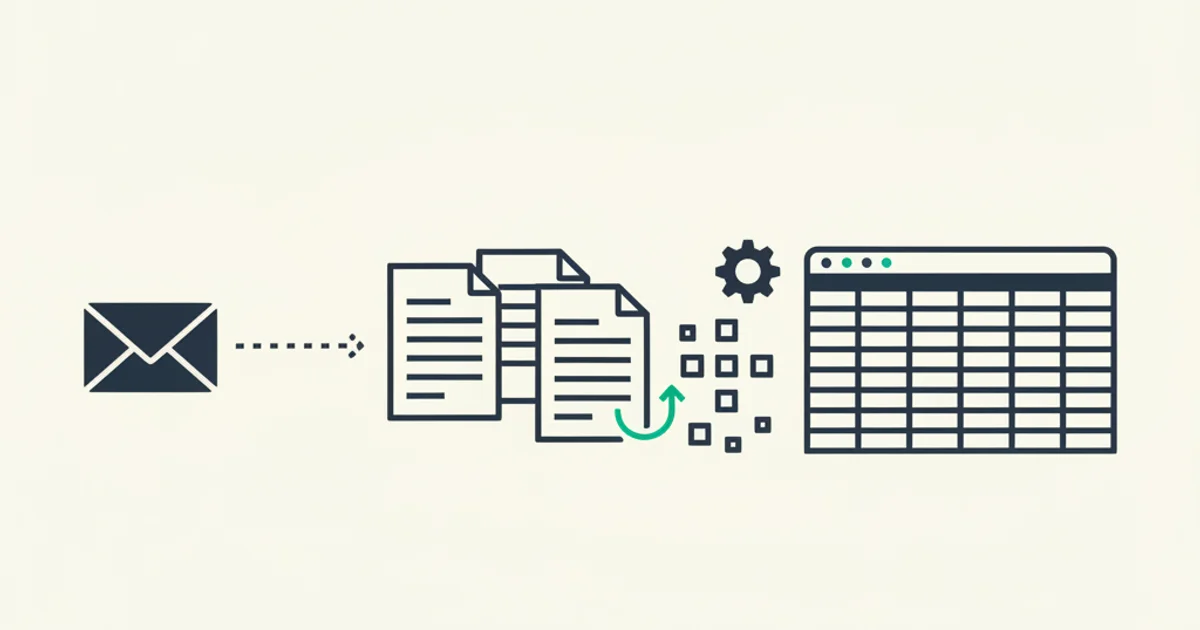
A lot of bookkeepers and freelancers run invoice tracking in Google Sheets not because they have not heard of QuickBooks, but because the tool fits their workflow. One sheet, one bookkeeper, pivot tables that roll up to a quarterly P&L. It works. The friction is not in the Sheet itself; it is in getting invoice data into the Sheet without typing every field by hand.
This guide is about solving that friction. It covers three paths from email to Sheets, the tradeoffs between them, a working Apps Script you can copy and run today, how to design your column schema so the data holds up when volume grows, and the signals that tell you when the Sheet is no longer the right destination.
Why Sheets is still the right destination for many bookkeepers and freelancers
The case against Sheets for invoice tracking is easy to make. No double-entry, no chart of accounts, no bank feed, no VAT return logic. A proper accounting system handles all of that.
The case for Sheets is practical. Most small businesses do not need all of that at once. A freelance designer invoicing ten clients and paying a dozen vendors does not need a chart of accounts. A four-person agency whose bookkeeper produces a monthly spreadsheet for the accountant does not need a bank feed inside the invoice tool. What they need is a single source of truth for every invoice that arrived, with enough structure to total by vendor, filter by month, and hand off to an accountant who will handle the journal entries.
Sheets does that cleanly. SUMIF, pivot tables, Drive links, shared access, CSV export in two clicks. For the right scale and workflow, it is not a compromise; it is the correct choice. The problem is that Sheets has no opinion about where its data comes from. It will not pull invoice fields out of a Gmail inbox by itself. That gap is what this article addresses.
The automation ceiling for Sheets is roughly 200 invoices per month with one bookkeeper. Past that, the sheet's performance starts to drag, concurrent edits create conflicts, and the manual review burden for edge cases compounds. Below that ceiling, Sheets with good automation is genuinely a better fit than a half-configured accounting platform that the team resists using correctly.
The three paths from email to Sheets
There are three realistic ways to get structured invoice data from email into a Google Sheet.
Path 1: Apps Script reading a Gmail label directly. You write a script that queries a Gmail label, loops over messages, saves PDF attachments to Drive, and appends rows to your Sheet. This is the most direct path and gives you full control over what gets captured and how. The limit is that extracting the amount, currency, and invoice number from the PDF requires calling an external parsing API, which the script shown below leaves as a manual fill-in step. That tradeoff is acceptable for many workflows.
Path 2: Zapier or Make with a parsing step. A Zap or scenario triggers on new Gmail messages in a label, routes the attachment to a document parsing service, and writes the parsed fields to Sheets. No code required. The costs are real: each invoice uses multiple tasks, parsing adds API credits on top, and the four-piece pipeline has four joints that can fail silently. At 100 invoices per month, the combined cost often exceeds a dedicated extraction tool.
Path 3: A purpose-built extraction tool writing to Sheets. Inbox Ledger connects to Gmail or Outlook, extracts structured invoice fields from every PDF, and writes rows to a Google Sheets ledger automatically. The integrations page shows what the output looks like. Setup takes about ten minutes. After that, every invoice that arrives in your inbox becomes a row in your Sheet with all fields populated, with no manual step.
The rest of this article focuses mostly on Path 1 because it is the most instructive and the most commonly built. Understanding how it works also helps you evaluate when Path 3 is worth the switch.
A working Apps Script that reads Gmail and writes to Sheets
The script below reads a Gmail label you specify, finds every email with a PDF attachment, saves each PDF to a Drive folder, and appends a row to your Sheet. The row includes date, vendor (extracted from the sender field), subject line, a link to the saved PDF in Drive, and a placeholder invoice number extracted from the subject.
Open Google Apps Script, create a new project, and paste this in. Change the four constants at the top.
// === CONFIGURATION - edit these four values ===
const GMAIL_LABEL = 'Accounting/Invoices'; // Gmail label name
const SHEET_ID = 'YOUR_SPREADSHEET_ID'; // ID from the sheet URL
const SHEET_TAB = 'Ledger'; // Tab name inside the spreadsheet
const DRIVE_FOLDER_ID = 'YOUR_DRIVE_FOLDER_ID'; // Drive folder to store PDFs

// Column headers - must match row order in appendRow() below
const HEADERS = [
  'Date',
  'Vendor',
  'Invoice #',
  'Currency',
  'Amount',
  'Tax',
  'Total',
  'Status',
  'PDF Link',
  'Source Email ID',
];

/**
 * Main function. Run manually or set a time-based trigger (daily or hourly).
 */
function syncInvoicesFromLabel() {
  const label = GmailApp.getUserLabelByName(GMAIL_LABEL);
  if (!label) {
    Logger.log('Label not found: ' + GMAIL_LABEL);
    return;
  }

  const sheet = SpreadsheetApp.openById(SHEET_ID).getSheetByName(SHEET_TAB);
  const folder = DriveApp.getFolderById(DRIVE_FOLDER_ID);

  // Build a set of already-logged email IDs to prevent duplicate rows
  const processed = getProcessedIds(sheet);

  // Fetch up to 200 threads - raise to 500 for large historical backfills
  const threads = label.getThreads(0, 200);

  for (const thread of threads) {
    for (const msg of thread.getMessages()) {
      const emailId = msg.getId();
      if (processed.has(emailId)) continue;

      const pdfs = msg.getAttachments().filter(
        (a) =>
          a.getContentType() === 'application/pdf' ||
          a.getContentType() === 'application/octet-stream' // some senders omit MIME
      );

      for (const pdf of pdfs) {
        const savedFile = folder.createFile(pdf);

        sheet.appendRow([
          formatDate(msg.getDate()), // Date
          senderToVendor(msg.getFrom()), // Vendor
          invoiceNumber(msg.getSubject()), // Invoice # - extracted from subject
          '', // Currency - fill in or parse from PDF
          '', // Amount - fill in or parse from PDF
          '', // Tax - fill in or parse from PDF
          '', // Total - fill in or parse from PDF
          'Pending', // Status
          savedFile.getUrl(), // PDF Link
          emailId, // Source Email ID (dedup key)
        ]);

        processed.add(emailId);
      }
    }
  }
}

/** Read column J (index 9, zero-based: 10th column) for existing email IDs */
function getProcessedIds(sheet) {
  const lastRow = sheet.getLastRow();
  if (lastRow < 2) return new Set();
  const ids = sheet
    .getRange(2, 10, lastRow - 1, 1)
    .getValues()
    .flat();
  return new Set(ids.filter(Boolean));
}

/** Format a Date object as yyyy-MM-dd for consistent sorting */
function formatDate(date) {
  return Utilities.formatDate(date, Session.getScriptTimeZone(), 'yyyy-MM-dd');
}

/** Pull a human-readable vendor name from a "Display Name <email@domain.com>" header */
function senderToVendor(from) {
  const displayMatch = from.match(/^"?([^"<]+)"?\s*</);
  if (displayMatch) return displayMatch[1].trim();
  const domainMatch = from.match(/@([^.>]+)/);
  return domainMatch ? domainMatch[1] : from;
}

/** Best-effort invoice number extraction from subject lines */
function invoiceNumber(subject) {
  const match = subject.match(/(?:inv(?:oice)?|receipt|bill|order)[^\w]*([A-Z0-9-]{4,})/i);
  return match ? match[1] : '';
}

/** Run once to create the header row */
function createHeaders() {
  const sheet = SpreadsheetApp.openById(SHEET_ID).getSheetByName(SHEET_TAB);
  if (sheet.getLastRow() === 0) {
    sheet.appendRow(HEADERS);
    sheet.getRange(1, 1, 1, HEADERS.length).setFontWeight('bold');
  }
}
Run createHeaders() once to set up the header row. Then run syncInvoicesFromLabel() manually or set a daily trigger via Triggers in the Apps Script editor. Full quota information is in the Apps Script quota reference.
The Currency, Amount, Tax, and Total columns stay blank. Extracting those from a PDF reliably requires calling an AI or OCR parsing API, which is a separate concern. The script handles the Gmail-to-Drive-to-Sheets plumbing. For teams where the bookkeeper opens each Drive PDF and types the amount anyway, two seconds of manual input per invoice beats the previous workflow by a significant margin.
The Apps Script documentation covers the full Gmail, Drive, and Sheets service classes used above. For the server-side equivalent using OAuth credentials, see the Google Sheets API reference.
Templates and schema design: what columns to track
Getting your schema right on the first version saves a painful reorganization later. Here is a column design that works at small-to-medium scale and migrates cleanly to QuickBooks or Xero when you outgrow Sheets.
Core columns (required for any useful ledger):
| Column | Type | Notes | | --------------- | ---------- | ---------------------------------------------------------- | | Date | Date (ISO) | yyyy-MM-dd. Sortable and importable without locale issues. | | Vendor | Text | Normalized name. Deduplicate aliases at insert time. | | Invoice Number | Text | From the document, not the subject line. | | Currency | Text | Three-letter ISO code: USD, EUR, GBP. Not a symbol. | | Amount (Net) | Number | Pre-tax subtotal. | | Tax | Number | Total tax charged. | | Total | Number | Net + Tax. What you owe or paid. | | Status | Dropdown | Pending, Approved, Paid, Disputed. | | PDF Link | URL | Drive URL to the source document. | | Source Email ID | Text | Gmail message ID. Deduplication key. |
Multi-currency extension (add when you receive invoices in more than one currency):
| Column | Type | Notes |
| ------------------ | ------- | --------------------------------------------------------------- |
| Reporting Currency | Text | Your base currency (e.g., USD). |
| Exchange Rate | Number | Rate at invoice date, stored as a fixed number (not a formula). |
| Total (Reporting) | Formula | =G2 * L2, calculated from Total and Exchange Rate. |
The exchange rate column matters more than it looks. A live GOOGLEFINANCE formula recalculates every time the sheet opens, which means historical totals drift every day. For bookkeeping records that need to survive an audit or a reconciliation, the rate must be frozen as a plain number at the date the invoice arrived. Fetch it from a rate API at insert time and store it directly. Inbox Ledger does this automatically for every invoice.
Category and GL columns (add when your accountant asks for them):
A Category column with a dropdown of expense categories (Software, Travel, Advertising, Professional Services) lets you SUMIF by category for monthly reports without leaving Sheets. When you eventually migrate to QuickBooks, this column maps directly to the GL account code. Building it into the schema from day one means migration is a column-to-field mapping exercise rather than a full re-keying of data.
For vendor-specific column considerations, the Stripe portal page documents what fields appear in Stripe invoice PDFs and how the billing sender format varies. The Amazon Business portal page covers the separate challenges of Amazon invoices, which frequently arrive as HTML receipts without a PDF attachment and require a different capture path.
When Sheets is enough versus when you need a proper ledger
Sheets works well for invoice tracking under these conditions: one person owns the ledger, invoice volume is under about 200 per month, accounting is cash-basis (you record when you pay, not when you are billed), and you do not need VAT returns or formal tax-rate breakdowns from the tool itself.
It breaks under these conditions:
Multiple editors with concurrent writes. Two people updating the same Sheets ledger at the same time produces merge behavior that is not always visible. Formula rows are especially vulnerable. For a finance team where more than two people touch the ledger, row-level conflicts are a real and recurring problem.
Accrual accounting. Cash-basis recording is one row per invoice. Accrual accounting requires recognizing expenses in the period they were incurred, not the period you paid, and adjusting for prepayments and deferred costs. Sheets does not model that natively. Once your accountant starts requesting accrual adjustments, you need a proper system.
VAT and GST filing. EU and UK VAT returns require a breakdown of input tax by rate, by period, and by vendor registration number. Sheets can hold that data, but it cannot produce the MTD-compliant digital records HMRC requires for Making Tax Digital filings, and it cannot generate Intrastat declarations or EC sales lists. Once you are VAT-registered in any serious jurisdiction, a proper bookkeeping tool earns its cost.
Audit requests. An auditor asking for your invoice archive typically wants read-only access to an immutable record with original PDFs and a structured export. A Sheets ledger that any team member can edit, with PDFs in a shared Drive folder, works for most small business audits in practice. For businesses handling large transactions or in regulated industries, the lack of an immutable audit trail is a real risk.
Start for free and extract your first 10 invoices without a credit card.
Failure modes in Gmail-to-Sheets automation
Three failure modes account for most of the data loss in script-based invoice archiving.
Silent script errors and quota hits. Apps Script fails without notifying you unless you configure email alerts explicitly. If the script hits a daily quota limit, throws an exception on a malformed PDF, or loses the Gmail label because someone renamed it, it stops and writes nothing. The next person who looks at the ledger does not know that three weeks of invoices are missing. Fix this by adding MailApp.sendEmail calls on exceptions, and check the Apps Script execution log weekly. The execution log is under View > Executions in the Apps Script editor.
Label drift. The Gmail label the script reads is a plain text string. If someone renames the label, the script silently stops finding messages. If you use nested labels and only some messages carry the parent label while others carry the sub-label, the query misses the ones that do not match the exact string. Label discipline requires coordination across everyone who touches the inbox, which is harder than it sounds for shared accounts.
MIME type mismatches. Gmail does not always report PDF attachments with application/pdf as the content type. Some senders mark them as application/octet-stream or omit the content type header entirely. A script that filters strictly on application/pdf misses those files. The script above handles this by also accepting application/octet-stream. A second edge case: password-protected PDFs that a script saves to Drive but cannot open for field extraction. Build a manual review step for the Pending rows in your ledger, and spot-check Drive contents weekly.
For a broader look at automated extraction tools that avoid these failure modes, see email invoice extraction alternatives. For the Gmail-specific extraction guide with full search operators and label setup, see the Gmail invoice extraction complete guide.
Migrating from Sheets to QuickBooks or Xero when you outgrow it
If your ledger was built with the schema above, migration is mostly mechanical. The columns map cleanly to QuickBooks Online and Xero import formats.
QuickBooks Online accepts CSV imports for bills. Required fields: Vendor Name, Transaction Date, Due Date, Account, Amount, Currency. Optional but useful: Reference Number (your Invoice Number column), Tax Code, Description. Your Sheets CSV exports directly into that shape if the column names align.
Xero's Bills import requires: Vendor Name, Invoice Number, Invoice Date, Due Date, Description, Quantity, Unit Amount, Tax Type, Account Code. The Account Code maps from your Category column if you built it. If you did not, this is the step where you categorize everything retroactively, which is the main reason to build the Category column from day one.
Three things slow migrations more than the data format.
Vendor normalization. QuickBooks and Xero match imports against an existing Contacts list. If your Sheets vendor names are inconsistent ("Acme Corp", "ACME CORP", "Acme Corporation, Inc."), the import creates duplicate vendor records instead of linking to the right one. Clean the Vendor column to a canonical name before importing, and build the Contacts list in the destination system first so the importer has something to match against.
Historical PDF linkage. QuickBooks Online supports PDF attachments on bill records. Carrying over your Drive links requires either re-attaching each PDF manually or using the QuickBooks API to bulk-create attachments. For a few hundred records, manual attachment takes an afternoon. For thousands, you need a migration script or accept that historical PDFs stay in Drive while new ones flow into QuickBooks.
Overlap period duplicates. If you import historical data and also start a new live feed, you will create duplicate records for the overlap period. Pick a clean cutover date. Import everything before that date from your Sheets export. Start the live feed from that date forward. Do not try to run both at the same time.
For the full picture of what a QuickBooks-integrated pipeline looks like once you make the switch, see the guide on automatically routing email invoices to QuickBooks and the QuickBooks Online integration walkthrough.
Closing: build the pipeline first, then decide on the destination
A well-built Sheets ledger fed by automation is a legitimate invoice management system for a business under roughly 150 invoices per month with one bookkeeper. It is not a fallback. It is a deliberate choice that fits a lot of real workflows better than a complex accounting platform nobody configures correctly.
The three paths covered here serve different situations. The Apps Script path costs nothing and works well for predictable vendors with PDF attachments. The Zapier or Make path removes code but adds recurring cost. The direct integration path trades a small subscription fee for high extraction quality, zero maintenance, and multi-currency support out of the box.
Whatever path you use, get the schema right from day one. Consistent vendor names, ISO dates, separate Currency and Amount columns, an exchange rate column that stores fixed numbers rather than live formulas. That schema is what makes migration to QuickBooks or Xero an afternoon exercise rather than a multi-week project when the time comes.
The Sheets file stays. The pipeline stays. If the destination ever needs to change, swap it at the output without touching anything upstream.