How to Download Stripe Invoices Automatically (2026 Guide)
A practical guide to pulling Stripe invoices without clicking through the dashboard. The manual path, its limits, and how to automate the whole thing.

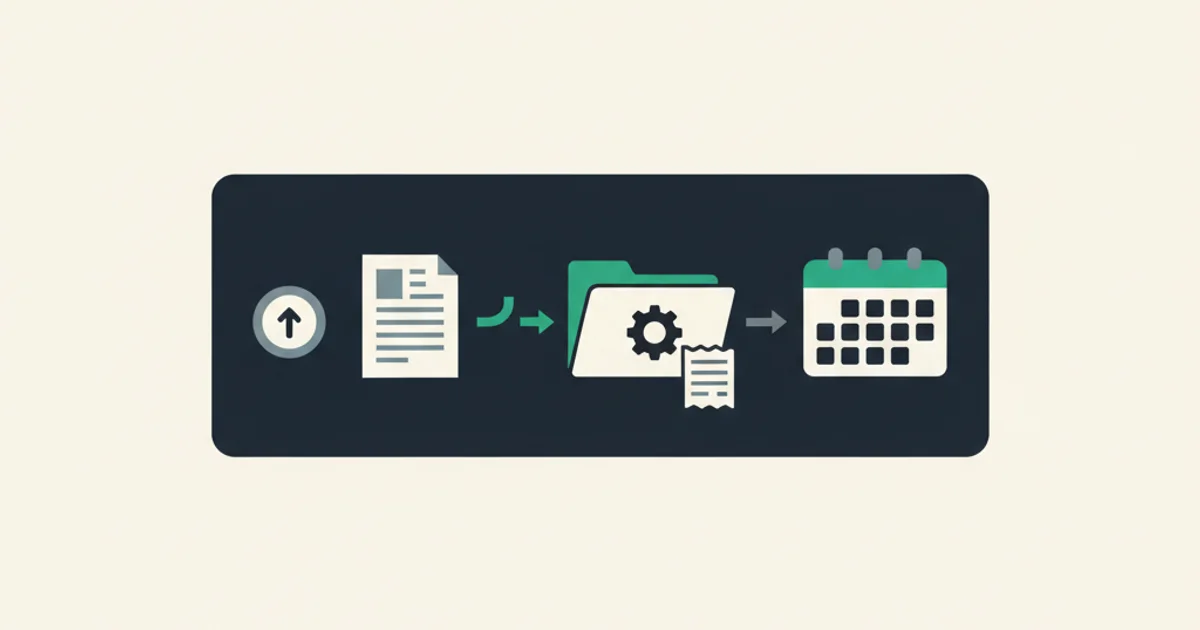
If you are closing the books on a SaaS with 40 active subscriptions, here is roughly what last month looked like: open Stripe, filter Billing → Invoice history by date, scroll, click an invoice, click "Download PDF," rename the file, drop it in Drive, repeat thirty-something times, then cross-check that nothing got missed. An hour gone. Maybe longer if you got interrupted and had to remember which invoice number you were on.
Stripe is a great payments platform. It is not a great document archive. The dashboard is built for people looking at one invoice at a time, not for finance teams who need every invoice from the last quarter in a tidy folder on the 3rd of every month.
This guide covers the two paths to getting Stripe invoices out of Stripe: the manual way (which you probably already know but maybe do wrong) and the automated way. We will be specific about UI labels, honest about trade-offs, and point out the places where the manual path quietly loses data. If you run a company that processes more than a few hundred charges a month, skip ahead. The manual section is there mostly so you know what you are replacing.
The manual way: downloading Stripe invoices from the dashboard
The dashboard export is fine for one-off audits and small businesses. Here is how it actually works.
Step 1: Find your invoice history
Log in to Stripe. In the left sidebar, open Billing → Invoices. This is not the same as Payments. Payments are individual charges. Invoices are the structured billing documents tied to customers and subscriptions. People confuse these two all the time and end up downloading charge receipts when they need invoices.
If you run multiple Stripe accounts (common for multi-entity businesses), check the account switcher in the top-left. Every entity has its own invoice list.
Step 2: Filter by date and status
Use the filter bar to narrow to the period you care about. The defaults show everything, which is rarely what you want. Set:
- Date range: use "Created" date, not "Due" date, unless you are specifically reconciling against AR aging
- Status:
paid,open,uncollectible. Usually you wantpaidfor closed months. - Customer: leave blank unless you are pulling invoices for a single client
Step 3: Export or download individually
Two options here. For bulk CSV export, click the "Export" button in the top-right. You will get a CSV with invoice metadata (numbers, amounts, customers, created dates, statuses, currencies), but no PDFs. CSV is useful for spreadsheets and quick reconciliation checks, not for archiving the actual invoice documents that your tax authority or auditor will ask for.
For PDF downloads, you have to click each invoice in the list, then click the "Download PDF" link on the invoice detail page. There is no bulk-PDF-download button in the dashboard. This is the part that breaks at scale, and it is also the part that most finance teams assume must exist somewhere in settings. It does not. Stripe's engineering priorities have always been payments, not document archiving.
A third option, if you are technical: the Stripe API. You can use the invoices.list endpoint with pagination and download each PDF via the invoice_pdf URL on each object. This works, but you are now writing and maintaining a script, handling rate limits, storing API keys securely, and deciding where the downloaded files go. It is automation, just homemade.
Step 4: Rename and file
Stripe's PDFs are named Invoice-XXXXXX-0001.pdf. No vendor, no date, no amount. Just an invoice ID that means nothing to anyone who is not logged into Stripe. If you want searchable archives, rename each file to something like 2026-04-15_stripe_acme-corp_$299.pdf before dropping it in your document system. Pick a convention early and stick with it. Mixing formats halfway through the year makes the whole archive harder to search.
Drop the renamed files into whichever folder structure you are using. Common patterns: by year and month (/invoices/2026/04/), by customer (/invoices/acme-corp/), or by entity if you run multiple Stripe accounts (/invoices/us-llc/2026/). Whatever you pick, pick it once.
The Export CSV has a hidden quirk: it caps at 10,000 rows. If you try to export a date range that exceeds that, Stripe silently truncates without warning. For high-volume accounts, always check the row count of your CSV against the dashboard count before assuming the export is complete.
Why manual breaks at scale
Let's put numbers on it.
A single invoice takes about 45 seconds to download, rename, and file properly. Longer if you lose focus between the download and the rename. At 40 invoices a month, that is 30 minutes. At 200 invoices, it is two and a half hours. At 1,000 invoices (not unusual for a mid-sized SaaS with per-seat billing), you are looking at a full workday every month doing nothing but clicking "Download PDF." Every month, forever.
That is only the raw time. The real cost shows up in three places.
First, missed invoices. When you are pattern-matching through 200 PDFs, you will miss one or two. Usually it is an invoice in a weird status: a disputed charge, an uncollectible, a partially refunded subscription, an out-of-cycle one-off. The ones that do not fit the "paid" pattern are exactly the ones your accountant will ask about in three months, and good luck reconstructing what happened when the only record is a line in the CSV export that you did not pair with a PDF. Audits usually find the gaps about 90 days too late to fix them cleanly.
Second, context switching. Manual downloading is interrupt-driven work: Slack pings, email notifications, someone asking a question. Each interruption means you are rechecking which invoice you were on and whether you already filed the last one. This is how duplicates end up in Drive and how some months end up with 39 invoices when Stripe says 40. The mental load of "don't lose track" is real, and it does not scale. Your brain has other things to do.
Third, delayed close. If month-end close depends on someone sitting down and downloading Stripe invoices on the 1st, the entire close cycle stretches. One person out sick, a holiday weekend, a sprint demo that ran long. Suddenly your Q1 books do not close until the third week of April. Downstream, that delays investor reports, cash forecasts, and commission calculations. The manual invoice download is one of those tasks that looks trivial until it is on the critical path.
Above 50 invoices per month, the manual path stops being a mild annoyance and starts being a real operations cost. Above 200, it is the kind of task that ends up punted to whoever has the worst week. Above 500, you are paying someone a full-time-equivalent fraction just to move PDFs around.
Manual vs automated
Manual
- Log in to Stripe dashboard each month
- Filter by date, status, customer every time
- Click each invoice individually for PDF
- Rename files to match your filing convention
- Risk missing weird-status invoices (disputed, partial refunds)
- 10,000-row CSV cap with silent truncation
- No direct push to QuickBooks, Xero, or Google Drive
- Roughly 45 seconds per invoice
Automated with Inbox Ledger
- One-time connection, then runs on its own
- Every new invoice ingested as Stripe sends it
- PDFs extracted with vendor, number, amount, and tax parsed
- Filename follows your chosen convention automatically
- All invoice statuses captured, no cherry-picking
- No row limits; full history available
- One-click push to QuickBooks, Xero, Drive, or Sheets
- Zero minutes of your time after setup
Automating with Inbox Ledger
The short version: Inbox Ledger watches your email inbox, pulls every invoice Stripe sends you (and every other vendor, for that matter), extracts the data with an AI model, and either stores the PDF in a searchable archive or pushes it straight into your accounting software.
Here is what the setup looks like in practice.
Connect your inbox. Most Stripe invoices arrive as PDF attachments to invoice@stripe.com emails. Inbox Ledger connects to Gmail, Outlook, or any IMAP account via OAuth. Google and Microsoft sign-in flows, no passwords stored, read-only access to the mailbox. The first sync pulls recent history (you pick how far back; most teams start with 90 days) and everything after that runs incrementally. No forwarding rules, no separate email address to remember, no sync cron job you have to babysit. You can also forward invoices to a dedicated Inbox Ledger address if you want a second-layer capture, or if your AP team wants a shared inbox that auto-processes everything that lands in it.
Let the extractor run. Every new Stripe invoice gets parsed as soon as it arrives in your inbox. Vendor, invoice number, issue date, due date, subtotal, tax, total, currency, line items: all structured fields, not screenshots of a PDF. If Stripe includes your VAT ID or tax breakdown, those come through too. There is nothing to configure for the common fields. The model handles Stripe's standard invoice format out of the box, along with the usual ~500 other vendors that ship PDF invoices. If an invoice is in an unusual format (a custom Stripe invoice with your own branding and layout, for instance), the extractor still pulls the core fields. It is trained on structured billing documents, not hardcoded to any one template.
Push to wherever your books live. From the extracted invoice, you can route to QuickBooks, Xero, Google Sheets, Google Drive, or OneDrive. Set up a rule once ("every Stripe invoice → QuickBooks Bills, tagged SaaS-revenue, mapped to the Software Subscriptions GL account"), and every future Stripe invoice lands there automatically. The rule engine supports conditions on vendor, amount, currency, tags, and more. Useful if you want Stripe invoices above $1,000 flagged for approval while smaller ones auto-post.
Review what you need to, ignore what you do not. Everything flows into a dashboard where you can see what arrived this week, what got exported, and what (if anything) failed to extract. Most teams check it once a week for a few minutes. Some just let it run and only look when the accountant asks a question. Webhooks are available if you want to push extracted data into your own systems, and the credit ledger is transparent. You can see exactly what processed, when, and how much it cost.
For the Stripe-specific walkthrough, including what to enable in your Stripe billing settings so invoices actually reach your inbox, how to configure CC recipients for multi-entity accounts, and how to make sure tax invoices (not just receipts) are what Stripe generates, see our Stripe portal page.
The integrations page has the full list of destinations, including one-click QuickBooks and Xero sync. AI processing covers how the extraction model handles edge cases like partial refunds, credit notes, proration, and multi-currency invoices. All common in Stripe-generated documents. If you spend most of your day in Stripe itself, the Chrome extension adds a one-click "Send to Inbox Ledger" button directly in the Stripe dashboard. Useful when you need to grab a specific invoice fast without switching tabs, or when you are doing ad-hoc pulls outside the normal monthly rhythm. For accountants who live in QuickBooks, the QuickBooks integration tool page has the full setup walkthrough.
Gotchas and edge cases
A few things that catch people off guard.
Multi-entity Stripe accounts. If your company runs separate Stripe accounts for different legal entities (US LLC + UK Ltd, for example), Stripe emails invoices to whatever email you configured per account. This usually means different inboxes, different recipients, or both. Inbox Ledger handles this by letting you connect multiple source inboxes to one workspace. Every entity's invoices land in one searchable place, but you can still filter by sender to keep the accounting separate.
Do not try to consolidate by setting up email forwarding from one entity's inbox to another. That gets messy with reply-to addresses and can trigger spam filters.
Currency conversion. Stripe invoices are denominated in the currency the customer paid in. If you have got customers in EUR, GBP, and USD and your books are in USD, the invoice PDF shows the original currency and the conversion rate Stripe used at the time of the charge. Manually reconciling these is painful: the rate changes daily, and Stripe's rate is not the same as your bank's rate. Automated extraction captures both the original and converted amounts, so you can match against whichever one your accountant needs.
Tax invoice vs receipt distinction. For B2B sales in most jurisdictions, the document your customer needs is a tax invoice: with your tax ID, their tax ID, a line-item tax breakdown, and sequential invoice numbering. Stripe can generate both receipts (proof of payment, no tax breakdown) and tax invoices (the full compliant document), but only if Stripe Tax is configured. A lot of teams discover this during an audit when they realize half their "invoices" are actually receipts and do not qualify for VAT reclaim. Check your Stripe Tax settings before you assume your archive is audit-ready.
If you migrated from PayPal, Braintree, or another processor to Stripe, your historical invoices are in two places. Stripe only has data from the migration date forward. Inbox Ledger pulls both, because it reads from your inbox. Old PayPal invoices are captured alongside new Stripe ones. The archive does not care which processor generated the PDF.
API rate limits. If you are writing your own sync script against the Stripe API, the list endpoint is rate-limited to 100 requests per second and paginates in chunks of 100 invoices. For accounts with 50,000+ historical invoices, the first full sync can take 10 to 15 minutes. Plan accordingly and add retry logic for 429 responses. Also worth noting: the Stripe API returns invoice objects with invoice_pdf URLs that expire after a short TTL, so if you are caching URLs instead of downloading PDFs immediately, you will hit broken links down the line.
Invoice numbering gaps. Stripe invoice numbers are sequential per account, but voided and deleted invoices still take a number in the sequence. When you are reconciling a CSV export against your archive and notice that invoice #00042 is missing, it might not be a bug. It might be a voided invoice that Stripe removed from the active list. Check the status = void filter before raising an alarm. Inbox Ledger captures void and deleted invoices too, with the status preserved, so the archive does not have mystery gaps.
When automation is not worth it
Honesty section: automation is not always the right call.
If you are a solo freelancer processing four or five Stripe invoices a month, the five minutes of manual work probably is not worth the setup effort, the monthly tool cost, and the added dependency. Download them by hand, drop them in a "Stripe 2026" folder, and move on. Connect automation when you hit somewhere around 20+ invoices per month and the manual task starts showing up in your monthly to-do list.
Same goes if your accountant already has direct access to your Stripe account and handles export on their side. Do not pay for two tools doing the same job. Ask your accountant what they actually need, and if they are happy pulling invoices themselves, let them.
Automation earns its keep when the volume is high enough that manual work becomes error-prone, when you need the data in a different system (QuickBooks, Xero, a data warehouse), or when you have more than one person involved and the handoff between them is where things get lost.
Closing: pick the right moment to automate
The manual path works. It scales to maybe 50 invoices a month before the friction outweighs the setup cost of anything else. Below that, muscle memory beats tooling.
Above that, you are losing real hours to a task that has no strategic value. Nobody is paying you to click "Download PDF." Automate it, get the hours back, and spend them on something your business actually needs from you.
If you want to see what Inbox Ledger does with your Stripe invoices specifically, including the exact fields it extracts and which integrations are supported, start with the integrations page, then connect an inbox and let it pull a few real invoices. You will know within ten minutes whether it fits your workflow.